

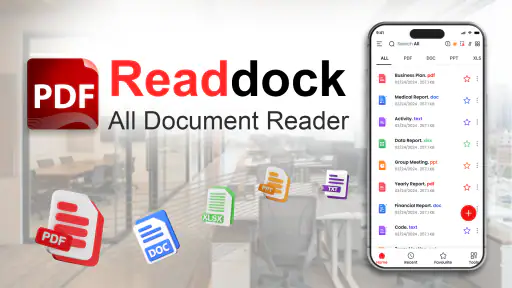
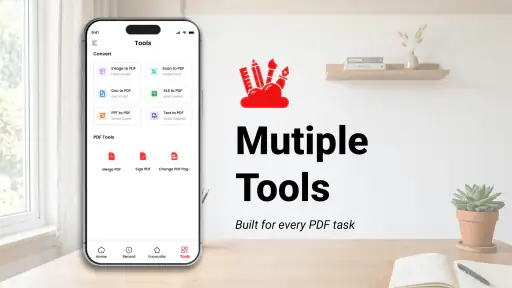
When I first opened Readdock, I approached it as a practical document utility rather than a full office suite. Its purpose is clear: bring several everyday PDF jobs into one place, including reading, annotation, signing, scanning, conversion, and file management. That combination makes it appealing if your documents are scattered between a phone, email attachments, and paper pages waiting to be digitized.
The app comes from Innovate AI and sits in the productivity category. It is free to install, with optional purchases ranging from $1.99 to $7.99 per item. It is rated for Everyone, so the basic idea is accessible even if you have never used a dedicated PDF tool before. I also found its broad scope more useful than the short store name suggests: this is not only a reader, but a place to handle a document from opening through final sharing.
That breadth is also the first thing to understand. Readdock is most convincing when you need several small document tasks in the same session. If you only want to read a novel-length PDF, a specialized reading app may feel calmer. If you need advanced desktop publishing, complex form automation, or deep collaboration, a full office platform will probably remain stronger. For ordinary mobile paperwork, though, the app has a sensible role.
Getting from installation to a useful first result
What the first screen is really for
My advice is to begin with one unimportant PDF instead of immediately opening a contract or an important application form. The first session is a good time to learn where files appear, how the document view behaves, and which tools are available without making a permanent change to something valuable.
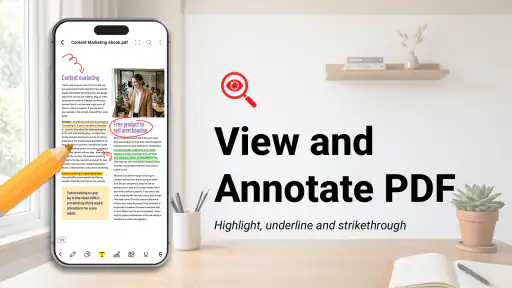
The central experience is built around selecting a document and then choosing the action you need. Reading should be your first stop because it gives you a quick feel for navigation, zooming, and the way the page is presented. Once that feels comfortable, annotation becomes much less intimidating: you can inspect a page, mark a relevant passage, and return to the document without switching between unrelated apps.
I especially like this order because it prevents a common beginner mistake: treating every PDF as if it were editable text. A PDF may be a clean digital document, a scan, or a mixture of both. Reading it first helps you understand what you are working with before you try to sign, convert, or mark it up.
Importing a file without creating a mess
For a first meaningful test, choose a document that is already on your device or available through the normal file-sharing options on your phone. Open it in Readdock, read a page or two, and then make one small annotation. That simple sequence confirms the most important part of the workflow: the app can become the place where you inspect and act on a document, not merely where you preview it.
I recommend using a naming habit from the start. Keep the original document untouched and give any edited or signed copy a clear name that tells you what changed. This is not a glamorous feature, but it matters more than people expect. When a PDF has passed through scanning, conversion, annotation, and signing, confusing the original with the final version can cause more trouble than the editing itself.
Readdock is also more useful when you think in terms of document stages. A scanned receipt is not the same kind of file as a form waiting for a signature. A study handout benefits from highlights and notes, while a travel document may only need quick viewing and organization. Choosing the right action before you start keeps the interface from feeling crowded.
Your first successful action: mark something you can find later
The best first success is not simply opening a PDF. I would open a short document, add a note or highlight to a genuinely important passage, save the result, close it, and then reopen it. That test tells you whether the app fits the way you actually work: notice something, mark it, leave, and return later.
Annotations are most valuable when they are selective. Covering a page in highlights may feel productive, but it makes later review harder. I prefer marking a deadline, a definition, a missing detail, or a question that needs an answer. On a phone screen, restrained annotation is especially helpful because too many marks can make the page visually noisy.
A useful workflow for study or work is to annotate during the first reading, then use the marked document as a short review guide. For example, I might highlight a requirement in a policy PDF, add a note about the person responsible for it, and later open only the marked pages when preparing a response. That is a more realistic benefit than simply saying the app supports annotation: the marks become a lightweight memory system.
Scanning paper documents with a purpose
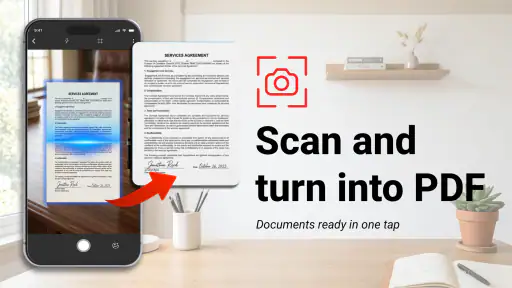
The scanning function is most useful when it solves a specific paper problem. Think of a receipt, a signed page, a printed reference sheet, or a form that needs to be kept with other digital documents. Instead of scanning a large pile without a plan, start with one page and decide what should happen afterward. Will you only store it, annotate it, convert it, or sign it?
This decision matters because scanning is only the beginning. A scan that is saved without a meaningful name or destination can be just as difficult to find as the original paper. I would scan the page, check that every important edge and line is visible, and then organize the resulting document immediately. A quick visual check is particularly important for signatures, totals, dates, and small print.
There is also a practical trade-off here. A phone scan is convenient and fast, but it is not automatically the best replacement for a high-quality office scanner. For casual records and mobile paperwork, the convenience is the point. For documents where tiny text or exact reproduction matters, I would inspect the result carefully before relying on it.
Signing and converting: where careful checking matters
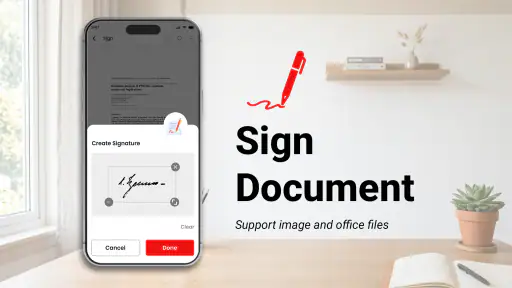
Signing is one of the features that can turn Readdock from a reader into a genuinely useful daily tool. I would use it for a document that is ready for a signature, but I would not treat the presence of a signing tool as proof that every form is compatible with every signing process. Before sending anything, review the completed page from beginning to end and confirm that the signature is positioned correctly and that no required field was overlooked.
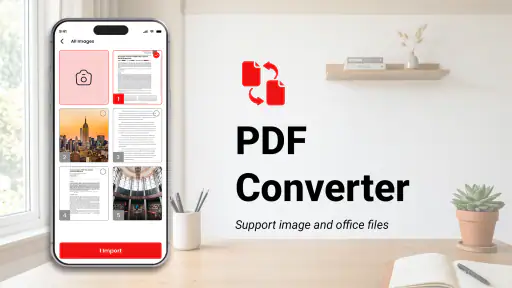
Conversion deserves the same caution. Moving content between PDF and another format can be convenient when you need to continue working elsewhere, but conversion is not always visually perfect. Tables, spacing, scanned text, and unusual fonts are the areas I would inspect first. My rule is simple: use conversion to make a document easier to work with, then compare the result with the original before sharing it as final.
This is one of the app’s less obvious trade-offs. Having reading, scanning, signing, and conversion together reduces app switching, but it also encourages you to assume that one tap completes a professional document workflow. I would still treat the final review as essential, especially for legal, financial, academic, or employment paperwork.
Understanding the parts that may confuse a new user
The word “PDF” covers several different situations, and that can make the first session confusing. A normal text PDF may behave differently from a photographed page. A document may look editable while actually being an image. A signature may be placed on top of a page without changing the underlying text. These are not necessarily failures; they are differences in how the source document was created.
If a scanned page does not behave like selectable text, I would not keep tapping randomly. I would first decide whether I only need to view and mark the page or whether I need a converted, searchable version. The right next action depends on the document’s purpose. For a receipt, a clear scan may be enough. For a long reference document, conversion or text recognition would be more important if available for that workflow.
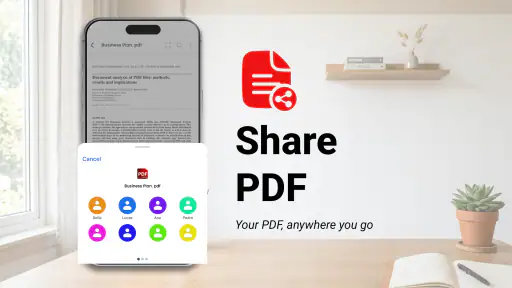
Another point worth keeping in mind is the difference between saving and sharing. After an edit, I would reopen the saved copy before sending it anywhere. This quick check catches misplaced marks, incomplete pages, or an unexpected version name. It is a small habit, but it makes mobile document work feel much more controlled.
A realistic everyday scenario
Imagine receiving a rental form by email while away from a computer. I would open the PDF in Readdock, read the instructions, annotate one question that needs clarification, and scan a supporting paper document if it is not already digital. After checking the form, I would add the required signature, review every page, and save a clearly named copy for my records before sharing it.
The value is not that each action is revolutionary on its own. The value is the reduced friction between them. Without a combined tool, I might use one app to preview the attachment, another to scan the paper, another to sign, and a file manager to locate the result. Readdock gives that sequence a more coherent home, provided the document remains within the level of complexity suited to a mobile app.
Who will appreciate it most
I think Readdock is a strong fit for students, freelancers, small-business owners, travelers, and anyone who regularly receives PDFs but does not want a desktop workflow for every minor task. It is particularly handy for people who annotate reading material, keep digital copies of paper documents, or need to sign occasional forms from a phone.
It can also suit a family member who wants a straightforward way to open and manage documents without learning a large office suite. The Everyone age rating supports that approachable positioning, although individual comfort with file handling still matters. I would show a new user the basic sequence—open, mark, save, reopen—before introducing scanning and conversion.
On the other hand, I would skip it if your work depends on advanced spreadsheet editing, elaborate document layouts, simultaneous team editing, or a highly specialized e-signature process. A traditional office suite is better for creating complex content, while a dedicated cloud drive may be better if shared folders and synchronized collaboration are the center of your day. Readdock makes more sense as a focused mobile document toolbox than as a replacement for every productivity program.
How it compares with the usual alternatives
Compared with a basic phone PDF viewer, Readdock offers a broader path from reading to action. A viewer is often enough when you only need to inspect a file, but it becomes limiting when you want to annotate, scan a related page, sign a form, or convert content without leaving the current workflow.
Compared with a general office suite, Readdock feels more targeted. An office suite may be more capable for creating and revising long documents, but that extra power can be unnecessary when the job is simply to handle an existing PDF. Readdock’s advantage is concentration: the document is already the main object, and the tools revolve around it.
Compared with a dedicated scanning app, its benefit is continuity after the scan. A scanning specialist may offer a more focused capture experience, while Readdock lets you continue toward annotation, signing, or document management in the same environment. I would choose between them based on the next step, not just the scan itself.
Performance, cost, and what to check before committing
The app is free, which makes it easy to test with your own documents before deciding whether it belongs in your regular toolkit. Optional purchases are available per item, so I would pay attention to which action you use repeatedly rather than assuming you need every extra capability. A person who only reads and marks PDFs may have different needs from someone who scans and signs documents every week.
Readdock has an average rating of 4.1 from around 3.4 thousand ratings, and it has passed one million installs. Those figures suggest that it has found a meaningful audience, but they should not replace a personal trial with the files you actually handle. A PDF tool can feel excellent with simple text documents and less comfortable with image-heavy forms or unusual layouts.
The current version is 1.9.4, and the app runs on Android 7.0 or later. That gives it a useful reach across older Android devices, although the experience will still depend on the phone’s screen, storage, camera quality, and general responsiveness. I would test a representative scan and a representative signed document rather than judging it only from a clean sample file.
The small habits that make the app more dependable
My first tip is to separate originals from working copies. Keep the untouched file available, then annotate, convert, or sign a duplicate. This is especially useful when you are experimenting with a new workflow or when a document may need to be sent to more than one person.
My second tip is to inspect scans at the smallest details that matter. Do not only look at whether the page appears complete. Check signatures, account numbers, totals, and dates. A scan can look fine at a glance while losing exactly the information you need.
My third tip is to use annotations as decisions, not decoration. A short note such as “ask about this clause” or “attach receipt” is more useful than broad highlighting. This turns Readdock into a practical review workspace instead of merely a place to draw on PDFs.
Finally, I would make the reopen-and-check step automatic after signing or conversion. It takes little time and protects against the most frustrating kind of mistake: sending a file that looked finished until someone else opened it.
My recommendation after using the full workflow
Readdock - PDF Tools is a sensible choice for people who want one mobile app for several document chores. I like it most as a bridge between reading and completion: open a file, understand it, mark what matters, add a scan or signature when needed, and keep the result organized.
It is not the app I would choose for every document job. Complex editing, collaborative office work, and highly specialized signing requirements may still call for more established alternatives. Its broader toolset also means that beginners should learn one workflow at a time rather than trying every option immediately.
For a first-time user, the path is reassuringly concrete: start with a harmless PDF, add one useful annotation, save a separate copy, and reopen it. Once that feels natural, try a single scan or signature and check the finished document carefully. That gradual approach is where Readdock feels most valuable: not as a replacement for your entire office, but as a practical pocket toolkit for everyday PDFs.


